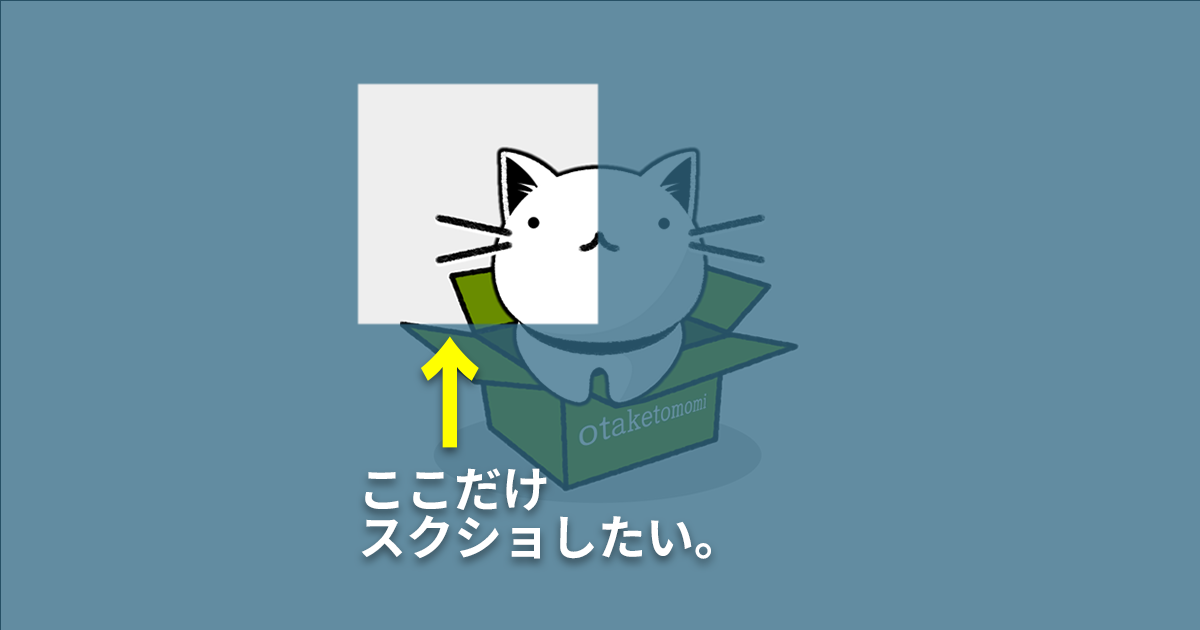
Macで範囲を指定してスクリーンショットを撮る(画面をキャプチャする)方法です。
- キーボードで[Shift]+[Command]+[4]キーを同時に押す
- マウスで選択範囲を指定する
- 画面下に画像が表示されるので、保存する
以上です。
Windowsの場合
Windowsの場合は、こちらの記事をご覧ください。
【文例】クライアント様へのご連絡
例えば、クライアント様からWebサイトの修正・更新のご依頼をいただいたときに、該当する部分が明確に分かるように、スクリーンショットを添付して欲しいときがあります。
その場合のクライアント様へのご連絡の文例を書いておきます。
いつも大変お世話になっております。
念のため、該当する部分のスクリーンショットを添付していただけますと幸いです。

スクリーンショットは下記の手順で撮ることができます。
【Macの場合】
1. キーボードで[Shift]+[Command]+[4]キーを同時に押す
2. マウスで選択範囲を指定する
3. 画面下に画像が表示されるので、保存する

【Windowsの場合】
1. キーボードで[Windows]+[Shift]+[S]キーを同時に押す
2. マウスで選択範囲を指定する
3. 画像を扱うアプリケーションソフトウェア(Photoshopやペイント、Word等)を起動して、画像を貼り付ける

お忙しいところ、お手数をお掛けいたします。
何卒よろしくお願い申し上げます。
ついでに、ChatGPTによる英訳文も載せておきます。
Just to be safe, could you please attach a screenshot of the relevant section?

Here are the instructions on how to take a screenshot:
[For Mac]
1. Press the [Shift] + [Command] + [4] keys simultaneously on your keyboard.
2. Use the mouse to select the desired area.
3. The image will be displayed at the bottom of the screen. Please save it.

[For Windows]
1. Press the [Windows] + [Shift] + [S] keys simultaneously on your keyboard.
2. Use the mouse to select the desired area.
3. Open an image editing software such as Photoshop, Paint, or Word, and paste the image.

Thank you for your understanding and cooperation.